What Compress PDF does
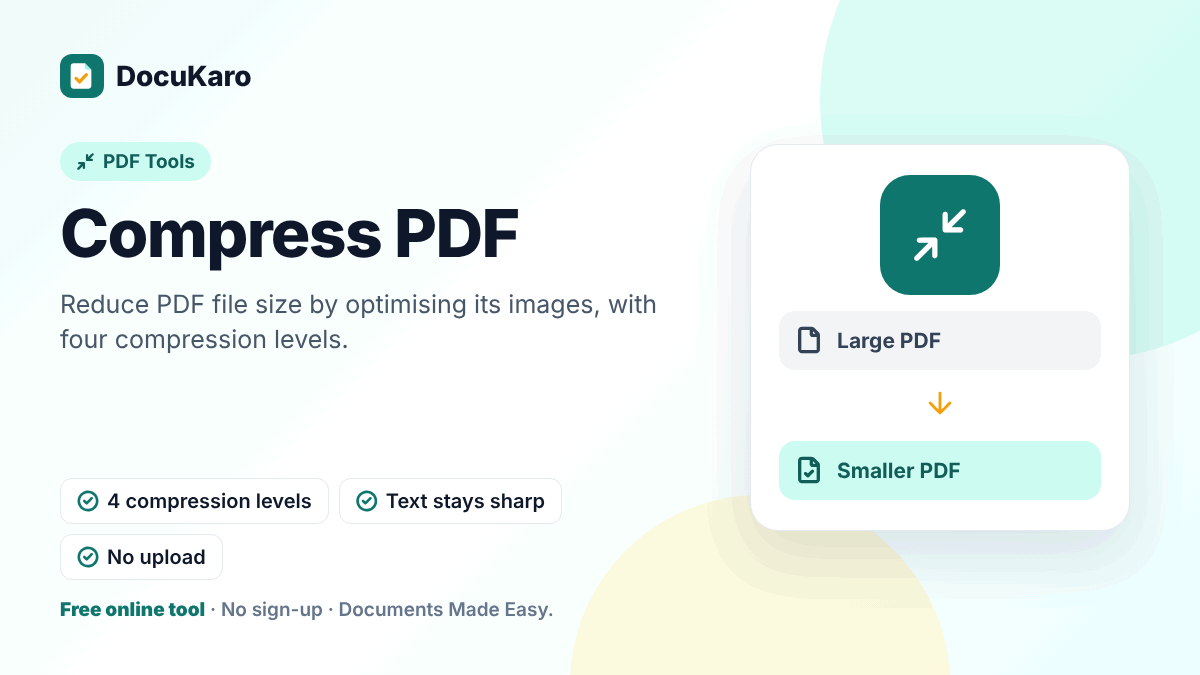
A PDF that is too large to e-mail or upload is nearly always large because of the pictures inside it: scanned pages, phone photos or high-resolution artwork. Compress PDF opens the file in your browser, finds those pictures and saves them again at a lower resolution and quality. Text and line drawings are left exactly as they were, so words stay sharp and selectable. For scans that still need to be smaller, a maximum mode stores each page as a single compressed image.
How to compress a PDF
- Add your PDF by dropping it on the page or tapping to choose it.
- Pick one of the four compression levels. Recommended is the right starting point for most files.
- Press the button and wait while the images are optimised.
- Compare the original and new sizes on the result card, then download the file.
Your original is never changed. If the result looks too soft, run the tool again on the original with a lighter level.
Choosing a compression level
| Level | What happens | Use it for |
|---|---|---|
| Light | Images are saved again at high quality | Documents that will be printed |
| Recommended | Images are reduced to a screen-friendly resolution | E-mail, sharing and most uploads |
| Strong | Lower resolution and quality | Tight upload limits where reading on screen is enough |
| Maximum | Every page becomes one compressed image; text is no longer selectable | Scans and photographed pages that must be as small as possible |
How much smaller will the file be?
It depends on what the file contains. PDFs made from scans or photos often shrink by 40–80%. A text-only document exported from a word processor is already compact and may hardly change — there are no large pictures to work on. The result card always shows the real saving, so you never have to guess.
When to use a different tool
- If a form states an exact limit such as 200 KB, use Compress PDF to KB, which keeps trying until the file fits.
- If most of the size comes from pages you do not need, remove them first with Delete PDF Pages.
- If the PDF was built from phone photos, cropping the photos before making the PDF gives a smaller and cleaner result than compressing afterwards.
Tips for the best result
- Always compress from the original file. Compressing an already compressed PDF again lowers quality without saving much.
- Zoom in on small print in the result before you send it.
- Colour scans are much larger than greyscale ones. If you can rescan, choose a greyscale or “document” mode.
Common problems
The file did not get smaller. It probably contains little or no image data. Try the Maximum level only if text selection does not matter.
Text looks blurry. That happens when pages are scans and the level is too strong. Use Recommended or Light.
The tool cannot open the file. Password-protected PDFs must be unlocked first with Unlock PDF; damaged files can sometimes be fixed with Repair PDF.
Privacy
Compression is done by your browser on your own device. The PDF is not uploaded to our server.