What Merge PDF does
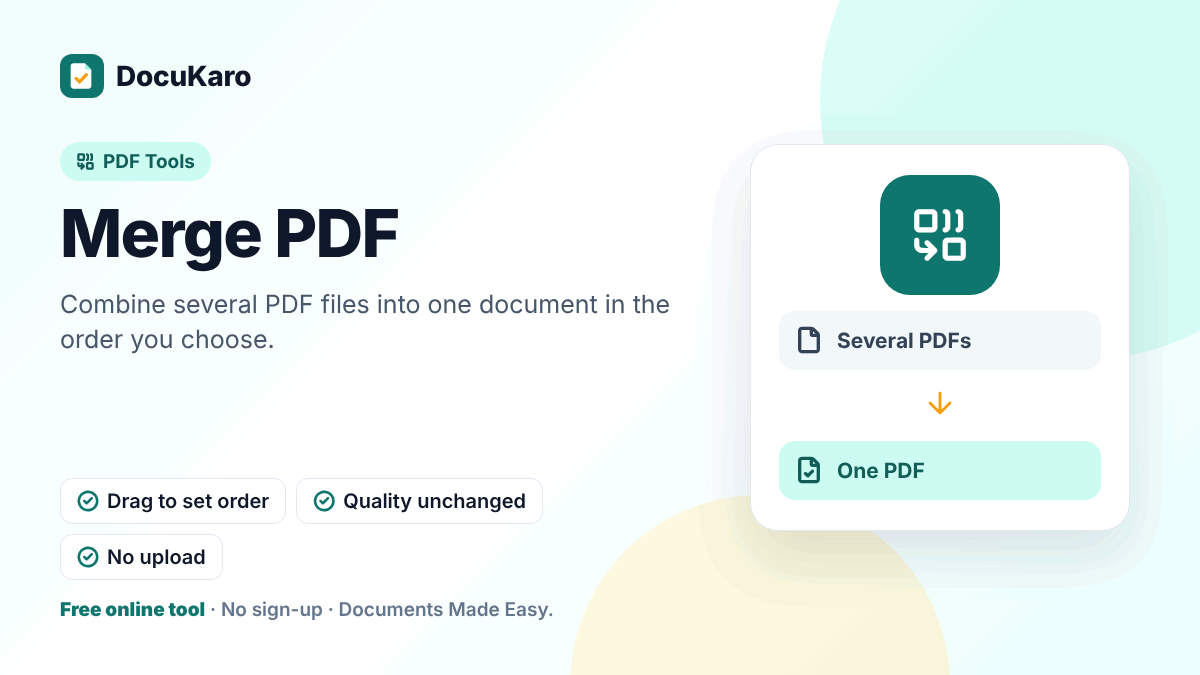
Merge PDF joins two or more PDF files into a single document. Add your files, drag the cards into the right order and download one PDF that contains every page of every file. It is the quickest way to turn a folder of separate documents into one tidy submission.
How to merge PDF files
- Add two or more PDFs. You can select them together or add more afterwards.
- Check the cards: each shows the file name and its page count.
- Drag the cards, or use the arrow buttons, to set the order.
- Press merge and download the combined file.
Use cases
- Combining an application form with supporting documents such as ID proof, certificates and mark sheets.
- Putting monthly statements or invoices into a single file for your accountant.
- Joining chapters, scanned sections or separately exported reports.
- Adding a cover letter to a résumé.
What is kept
| Item | After merging |
|---|---|
| Page content, images and fonts | Kept exactly; nothing is recompressed |
| Page sizes and orientation | Each page keeps its own |
| Links inside pages | Kept |
| Most form fields | Kept — but see the note below |
| Bookmarks (outlines) | Not merged |
If two files contain form fields with the same name, the values can interfere with each other. Flatten filled forms before merging to avoid this.
Tips for a clean result
- Name files in the order you want them (01-form.pdf, 02-id.pdf) before adding them; it makes the order easy to check.
- If a portal specifies the order of enclosures, follow it exactly.
- Merging does not shrink anything. If the combined file is too large, run it through Compress PDF.
- Add page numbers afterwards so reviewers can refer to a page.
Need more control over pages?
Merge PDF works with whole files. To move, rotate or remove individual pages after merging, open the result in Organize PDF. To include only part of a file, cut it out first with Extract PDF Pages.
Common problems
A file will not load. It is probably password-protected. Remove the password with Unlock PDF — you need to know it — and add the unlocked copy.
Pages are different sizes. That is normal when mixing sources, and viewers handle it. For a uniform look when printing, choose “fit to page” in the print dialog.
Photos need to be included. Convert them with JPG to PDF first, then merge.
Privacy
Files are combined in your browser on your own device. They are not uploaded to our server.