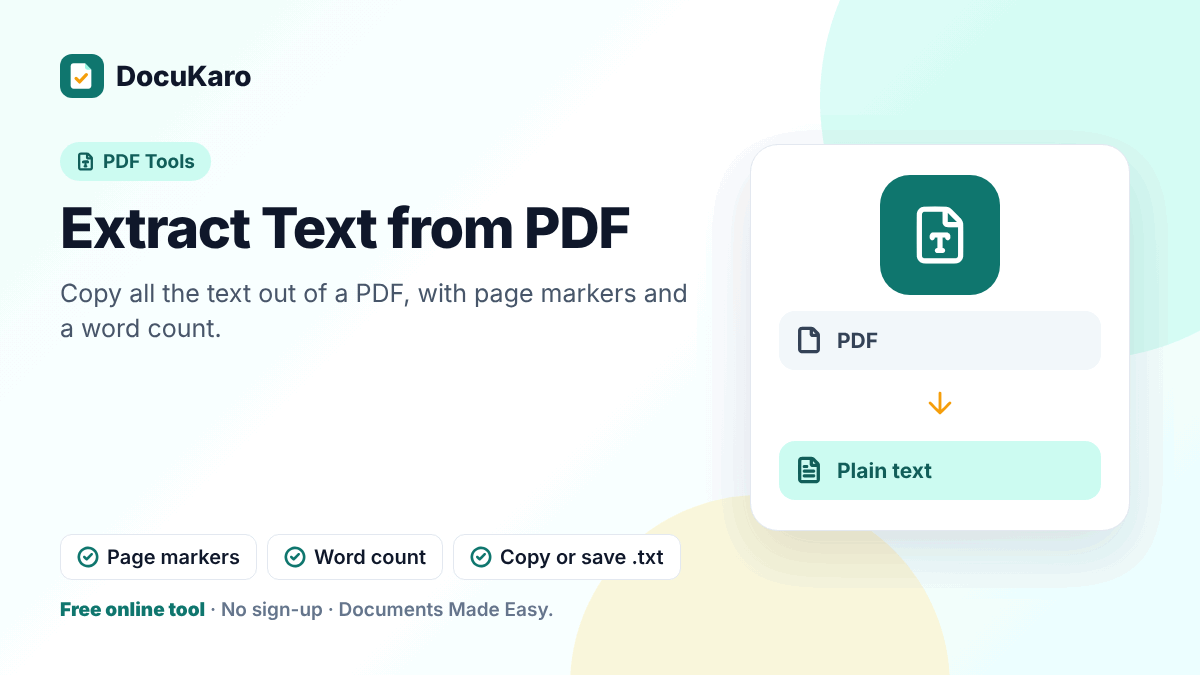
What Extract Text from PDF does
This tool copies all the text out of a PDF so you do not have to retype it or fight with selection in a PDF reader. Line breaks are rebuilt from the page layout, each page is labelled, and a word count is shown. Copy the result to the clipboard or save it as a .txt file.
How to extract text
- Add your PDF.
- Press the button. The text of every page appears, with page markers.
- Copy the text or download it as a plain text file.
Use cases
- Quoting passages from a report, paper or e-book in your own notes.
- Reusing the wording of an old document whose source file is lost.
- Getting the content of a PDF into a translation tool, a spreadsheet or a note-taking app.
- Counting the words in a PDF.
- Checking what text a PDF actually contains — for example to verify that a redaction removed what it should.
What you get — and what you do not
| Kept | Not kept |
|---|---|
| All text, in reading order as far as the layout allows | Fonts, sizes, colours and bold or italic styling |
| Line and paragraph breaks based on position | Images, charts and drawings |
| Page markers | Exact table structure and columns |
The result is plain text. If you want an editable document that keeps headings and emphasis, use PDF to Word. For tables, use PDF to Excel.
When the result is empty
An empty result nearly always means the PDF is a scan: its pages are pictures and contain no text at all. Run the file through PDF OCR, which recognises the words in the images.
When the text looks odd
- Garbled characters. A few PDFs use fonts without proper character mapping, so the stored text does not match what you see. OCR is the workaround, because it reads the page as a picture.
- Words joined or split. PDFs position characters individually, and spacing sometimes has to be estimated.
- Columns mixed together. Multi-column pages are read by position; text from neighbouring columns can be interleaved. Extracting one page at a time makes tidying easier.
- Headers and footers repeated. They are text like any other and appear on each page. A quick find-and-replace removes them.
Tips
- Extract only the pages you need by cutting them out first with Extract PDF Pages.
- Paste into a plain-text editor first if your word processor adds unwanted formatting.
- Password-protected files must be unlocked before text can be read.
- Respect copyright: extracting text for your own notes and quotation is one thing; republishing someone else's work is another.
Privacy
Text is read by your browser on your own device. The PDF is not uploaded to our server.